¶ Introduction
ℹ️ Catatan: Disclaimer Editable Payment Plan is an Advanced Feature. A deep functional knowledge about Openbravo is required to use it. Especially it is important to understand how Openbravo manages the [invoice's payment plan](/ManualDoc/Common_OBConcepts&Processes#Invoice-27s_Payment_Plan) Before using this functionality it is recommended to contact with our support team.
The "Editable Payment Plan" feature allows to edit and change an invoice payment plan if the invoice is not fully paid.
In Openbravo an invoice is fully paid if all the invoice's payment plan line does have a payment made or received related.
This feature also supports the removal of not paid payment plan lines therefore new payment plan lines can be created.
This action is useful if an outstanding payment plan line amount need to be split into two lines having a different expected payment date for instance.
This feature is an [advanced feature](/ManualDoc/Common_OBConcepts&Processes#Advanced_Features) which needs to be unhidden as described in the [invoice's payment plan](/ManualDoc/Common_OBConcepts&Processes#Invoice-27s_Payment_Plan) article of the User Guide.
¶ Editable Payment Plan
An invoice's payment plan can be edit and therefore changed by using the button Modify Payment Plan.
This button can be found once unhidden in the [Payment Plan](/Sales_Invoice#Payment_Plan) tab of the sales invoice window and in the [Payment Plan](/Purchase_Invoice#Payment_Plan) tab of the purchase invoice window.
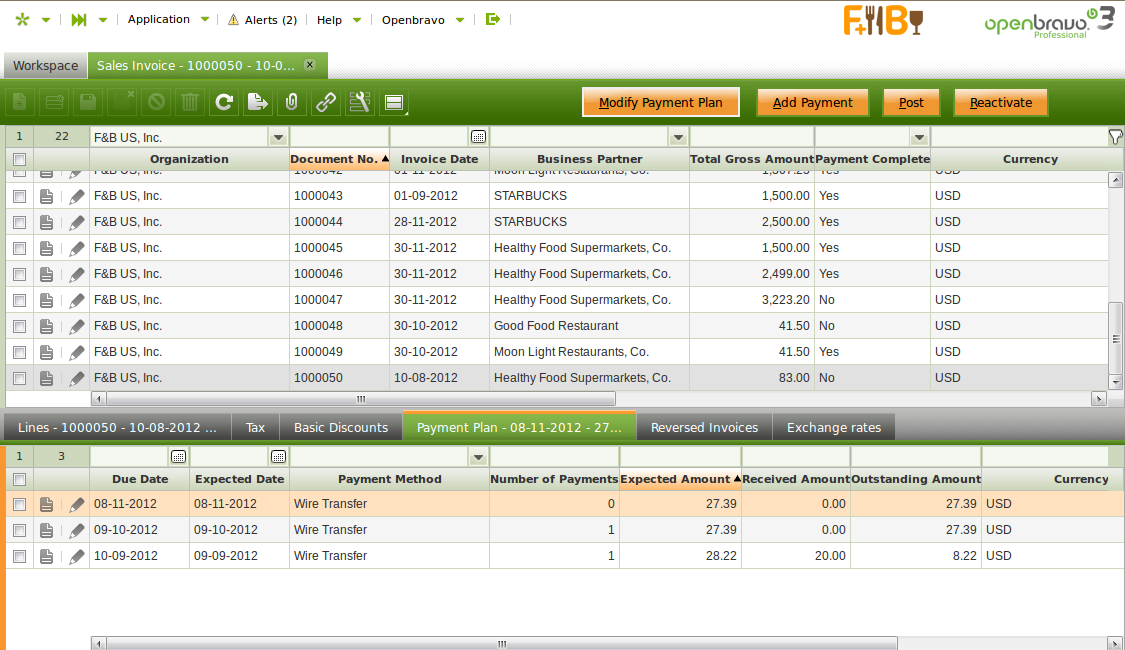
"Modify Payment Plan" button opens a new window which list the not "totally" paid invoice's payment plan lines which therefore can be edit and changed.
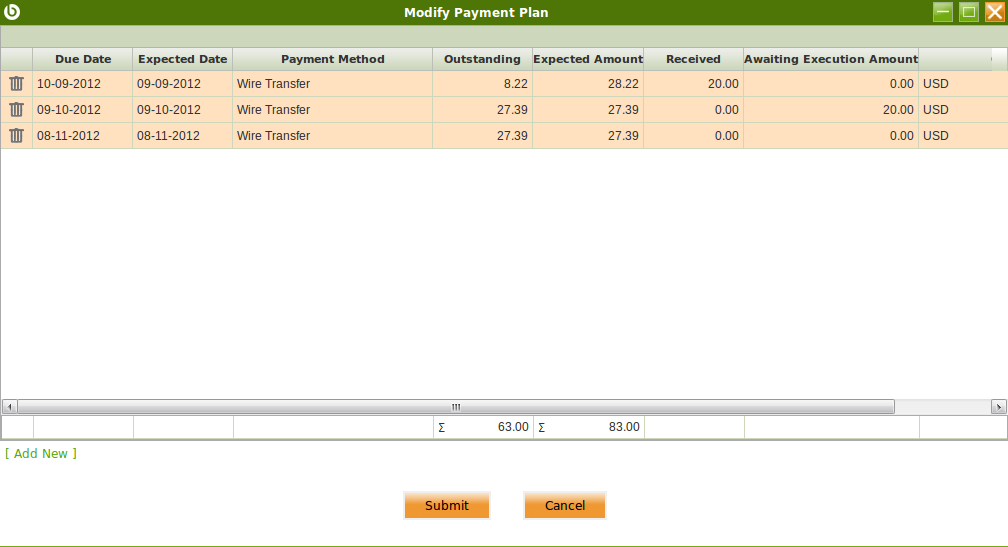
As shown in the image above, some relevant fields to note of the payment plan lines are:
- the "Due Date" that is the original payment date agreed based on the [Payment Terms](/Payment_Term) specified for the invoice.
This date is the reference date used in financial reports such as the [Aging Balance](/Projects/Payment_Aging_Balance/User_Documentation) report.
It is recommended not to change this date but the expected date unless new payment plan lines need to be created as those new lines will also need a due date to be specified.
- the "Expected Date" that is the date when the payment is expected to be made or received. This date reflects a revision of the original payment plan due date.
This date is the reference date used in management reports such as the [Payment Report](/Payment_Report).
- the "Payment Method" agreed and therefore linked to the payment plan line.
- the "Outstanding" amount to be paid
- the "Expected Amount" to be paid
- the "Received/Paid" amount
- the "Awaiting Execution Amount" that is the amount of the line included in a payment in status awaiting execution.
- It is important to remark that the amounts in an awaiting execution status can not be edit and changed as they are already related to a payment waiting to be executed.
- and the currency of the payment plan line or invoice currency
¶ Payment Plan Lines modification
The invoice's payment plan lines not fully paid can be modified by double click on the line to be edit and changed.
The payment plan line data which can be changed is:
- the Expected Date to an earlier date or to a later date that the one already agreed between the parties.
- the Payment Method agreed with the business partner
- and the Outstanding amount to be paid by taking into account below described restrictions:
- once changed the sum of all the outstanding amount of the payment plan lines must be equal to the outstanding amount of the invoice's payment plan, otherwise a new line needs to be created for the remaining amount.
- all the outstanding amounts must be in the same sign either all of them are positive or all of them are negative.
- if a payment plan line has already a given amount in an awaiting execution status, the new outstanding amount of that line needs to be at least the awaiting execution amount. That is because it is not possible to modify the amounts already related to a payment even if the payment is waiting to be executed.
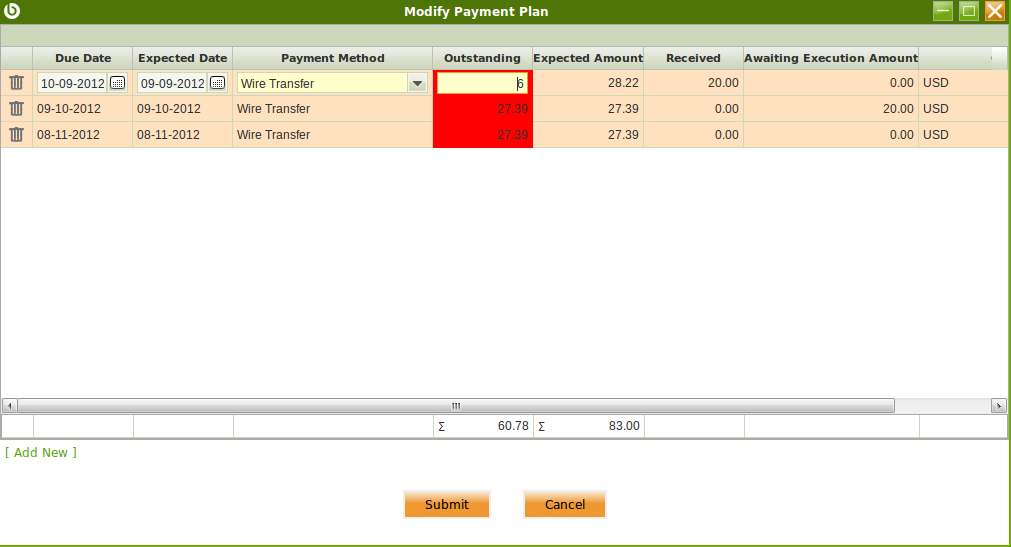
If any of these requisitions are not met, the application will inform about it as shown in the image below.
It will not be possible to submit the new payment plan until all the restrictions are met.
¶ Payment Plan Lines deletion/creation
The Payment Plan lines can be deleted by using the "Delete" icon at the left of each line.
New payment plan lines can be added by using the [Add New] option at the bottom, by having into account below detailed restrictions:
- the sum of all the outstanding amount of the payment plan lines must be equal to the outstanding amount of the invoice's payment plan, otherwise a new line needs to be created for the remaining amount.
- all the outstanding amounts must be in the same sign either all of them are created positive or all of them are created negative.
- if a payment plan line has already a given amount in an awaiting execution status, the new outstanding amount of that line needs to be at least the awaiting execution amount and that line can not be deleted.
If any of these requisitions are not met, the application will inform about it as shown in the image above
It will not be possible to submit the new payment plan until all the restrictions are met.
¶ Editable Payment Plan example
Let's take a sales invoice having three payment plan lines as configured in the corresponding [payment term](/Payment_Term) linked to it.
The [payment method](/Payment_Method) used in this invoice requires an additional step to be executed for instance the recording of a check number.
The objective of this example is to collect all what is remaining to be paid of each line into a new payment plan line due at the beginning of December 2012.
Overall the invoice's expected amount is 83.00 USD and the invoice's outstanding amount is 63.00 USD.
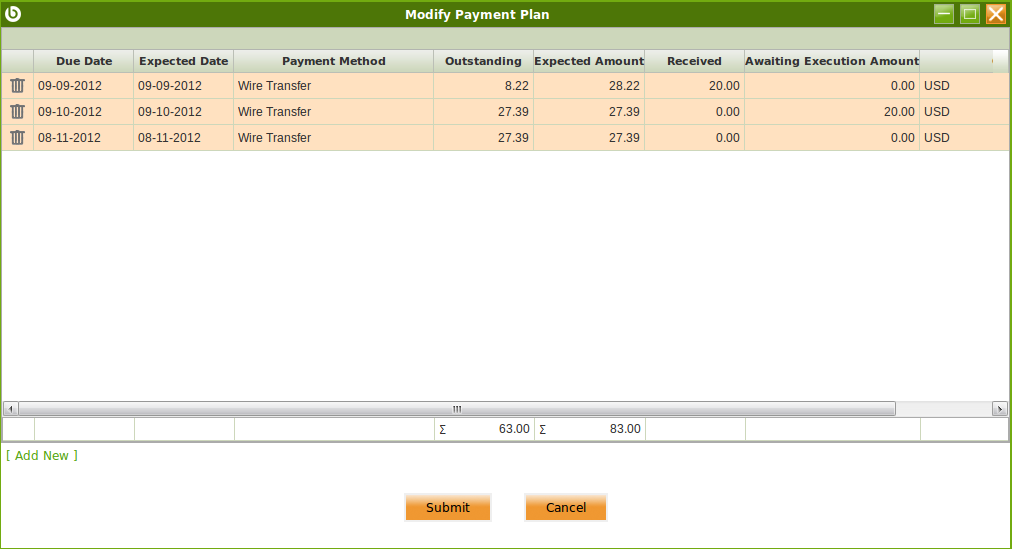
The current status of each sales invoice's payment plan line is:
- the first payment plan line due at the beginning of September 2012, has a received amount of 20.00 USD.
That means a payment received against it of 20.00 USD in status "Payment Made" or "Deposited not Cleared".
-
- If the "Outstanding" amount of that line is changed to 0.00 USD that means that line is fully paid.
The remaining amount of that line (8.22 USD) needs to be included in the new payment plan line due at the beginning of December 2012
- the second payment plan line due at the beginning of October 2012, has an "Awaiting Execution Amount" of 20.00 USD.
That means a payment received against it of 20.00 USD in status "Awaiting Execution".
-
- If the "Outstanding" amount of that line is changed to the awaiting execution amount of 20.00 USD that means that line is fully paid.
The remaining amount of that line (7.39 USD)needs to be included in the new payment plan line due due at the beginning of December 2012.
- the third line due at the beginning of November 2012, does not have any payment received against it as the received amount is 0,00 same as the awaiting execution amount.
- this line can be fully deleted therefore the outstanding amount left to be paid (27.39 USD) can also be included in the new payment plan line due due at the beginning of December 2012.
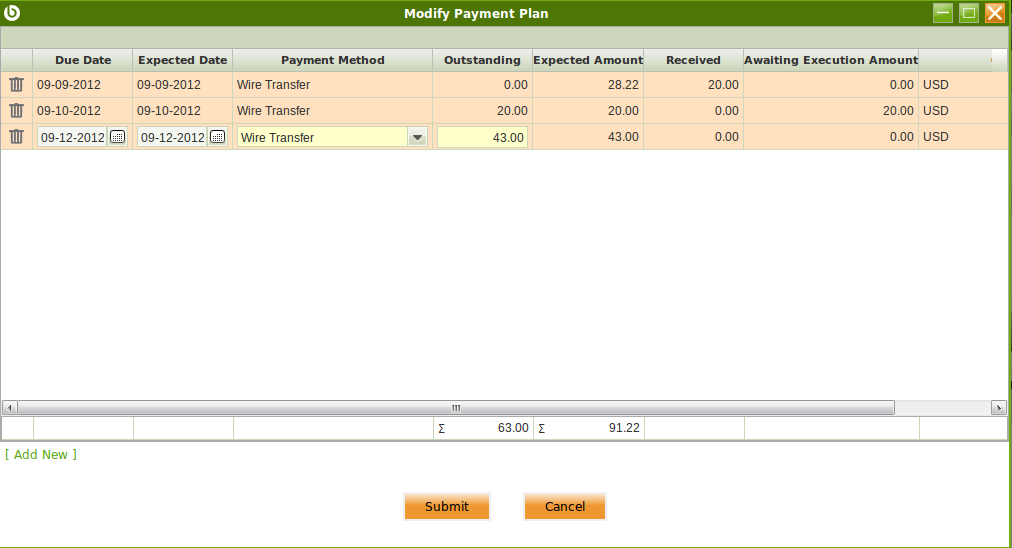
The button "Submit" transfers the new payment plan to the payment plan tab of the invoice as shown in the image below:
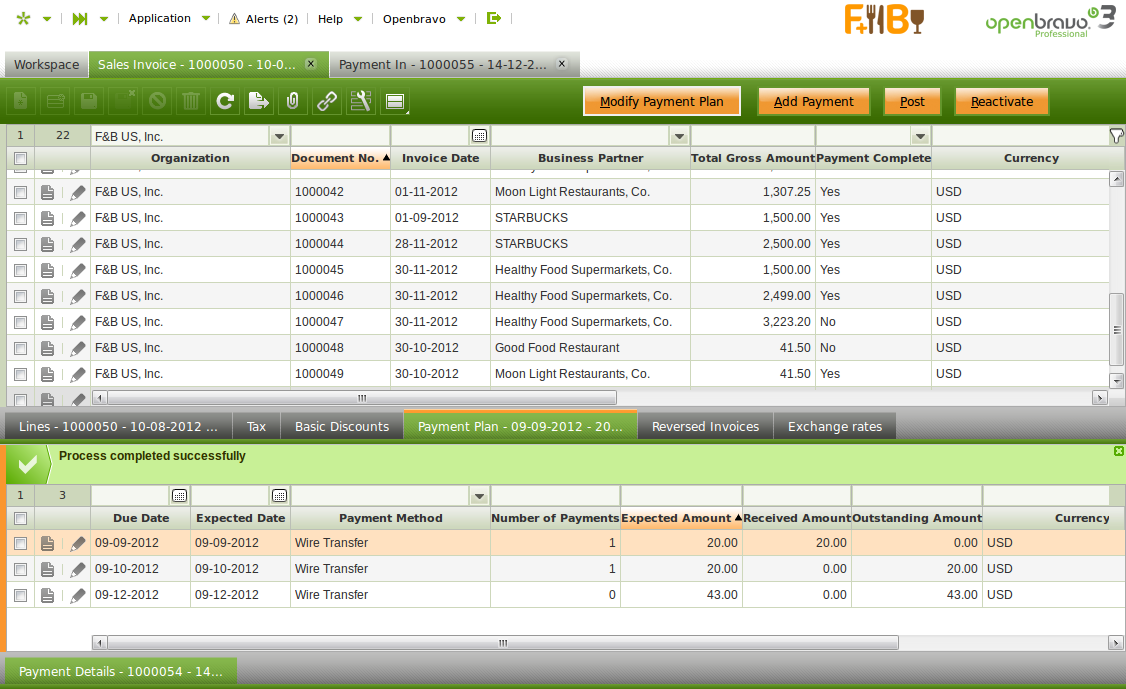
Please note that the invoice's payment plan can be changed more than once if required by using once again the button "Modify Payment Plan"
The sales invoice in the example will turn into as fully paid:
- once the payment due at the beginning of October is executed
- and once the payment due at the beginning of December is registered and then executed.