🌐 English · Bahasa Indonesia · Translate this article…
⚠️ Work in progress — This document is still a work in progress. It may contain inaccuracies or errors.
¶ Introduction
Welcome to the Openbravo 3 Quick Guide
This guide consists of two main parts:
- the basic setup of the business configurations
- and the management of the basic business flows
both of them in Openbravo
The aim of this guide is to give examples and explanations of common business configurations and also explain how to manage basic business flows, intentionally keeping the explanations and setup as simple as possible.
By following this simple guide you should be able to have your own version of Openbravo up and running within a couple of hours. We encourage you to personalize the examples so that they are meaningful to you.
Remember: Help is always at hand through public forums and through the #openbravo IRC channel.
¶ Glossary
- Openbravo: Your Openbravo 3 system, sometimes referred to as your OB3 instance.
- Client: A client in Openbravo is the top-most level of configuration and data within your OB3 system.
- The client is sometimes referred to as the "master organization" because certain configuration information, including users (and their access rights), customers, vendors (suppliers), inventory (stock items), and other master data can be managed within a client and therefore is available to all organizations within that client (clients can not share information with each other).
- In this guide we will sometimes talk about configuration and data "at Client level", meaning that it is configured at this top level and thus available for all organizations within that client.
- Organization: An organization is the second level of configuration and data.
- Each organization belongs to a single client, while each client can host multiple organizations (so there is a one-to-many relationship between client and organization).
- Organizations can also be structured in a parent and child relationship (again, one-to-many), providing multiple configuration options when modelling your enterprise.
¶ System Requirements, Download and Install
After reviewing the system requirements, please read the Installation Manual properly and then choose the installation method best suited for you and your business to set up your personal Openbravo 3 environment, closely following the instructions, with the final step being: Activating your "Professional Subscription" instance.
¶ Login
After Openbravo is installed, point your browser to http://<IP_ADDRESS>/openbravo, replacing "<IP_ADDRESS>" with the IP Address (or Host Name) of the host machine running the Openbravo server.
If you have installed Openbravo onto your local machine then you may simply enter http://localhost/openbravo in a browser session on the local machine.
For most tasks in this Quick Guide you must be logged into Openbravo as an Administrator of the entity you need to administrate.
In order to be the System Administrator, first log into Openbravo.
- Enter the User Name and Password in the login screen.
ℹ️ Catatan: Note: The default user name is "Openbravo" and the password is "openbravo" .....and these are case sensitive!
-
Click on the Openbravo button in the toolbar:
- Select "System Administrator" as Role. The System Administrator, has the necessary rights to administrate your Openbravo system.
- Organization will be set to "*" (asterisk) by default, meaning your Openbravo client (the highest level in Openbravo).
- Click on the Apply button.
You are now logged in as System Administrator.
ℹ️ Catatan: The field "Days To Password expiration" configurable in Client, and the related behaviour is available from 16Q2 version.
It could happen that, while you are trying to login, you are asked to enter a new password. This behaviour is caused by a configuration in Client.
During login, the process will check if the user has reached the limit date for the password, in this case, the interface will force the user to renew the password, and the new limit date will be updated once the new password is saved.
The new password must be different from the previous password, otherwise a message is shown.
ℹ️ Catatan: Note: Starting from PR18Q3, renewed passwords must meet a minimum strength criteria: it must be at least 8 characters long and contains at least 3 of the following: uppercases, lowercases, digits and special characters.
Also password could be renewed from the backend before expiration date has been reached, in User windows, using Password field to change the password.
¶ Navigation
This guide requires that you follow a path to access certain configuration options or enter master data.
For example, you may be asked to Go to General Setup || Application || Heartbeat Configuration
There are two ways to navigate there:
'1.Enter the name of the page'' you want to get to into theQuickLaunch toolbar's text field.
For this example we would start typing "Heartbeat Configuration" and notice that the system automatically prompts us to select from the matches that it finds dynamically.
Being an advanced OB3 user, this might be the faster way of navigating through Openbravo. > ℹ️ Catatan: Note: Of course using the QuickLaunch
2. Follow the path in the menu tree.
In order to browse the menu tree:
- Click on the Application button in the toolbar and browse the tree structure, following the path given in the instructions (in this example it is General Setup || Application || Heartbeat Configuration).
This way is slower than using the QuickLaunch toolbar, but may be helpful when navigating in Openbravo for the first time (as you can get used to the menu's structure).
¶ Enabling Heartbeat
In order to install modules (or fully use an Openbravo Professional Edition free trial) you must first enable the Heartbeat.
Heartbeat is a process which gathers and sends data about the Openbravo 3 system to a service on the Openbravo's infrastructure. The collection of the info is just for statistics purposes in an anonymous way.
ℹ️ Catatan: Note: You must be logged in as System Administrator.
The first time you log in as System Administrator you will be prompted to enable the Heartbeat. If, for some reason, you declined, you can always enable it later:
Go to General Setup || Application || Heartbeat Configuration
- Click on "Enable Heartbeat".
If you now view the Heartbeat Log in the lower part of the screen you will see all the information that is sent by the Heartbeat.
- Once the Heartbeat is configured you can close this tab.
¶ Personalizing Openbravo
Openbravo can be easily personalized.
If you want to customize the look and feel of Openbravo to suit your personal needs read this article How to Personalize Openbravo.
¶ Business setup
¶ Business setup diagram
The diagram below shows the business setup flow which is going to be explained in this section.
This business setup flow goes from the "Generic setup" and "Master Data" areas to the "Accounting" and "Warehouse" setup areas.
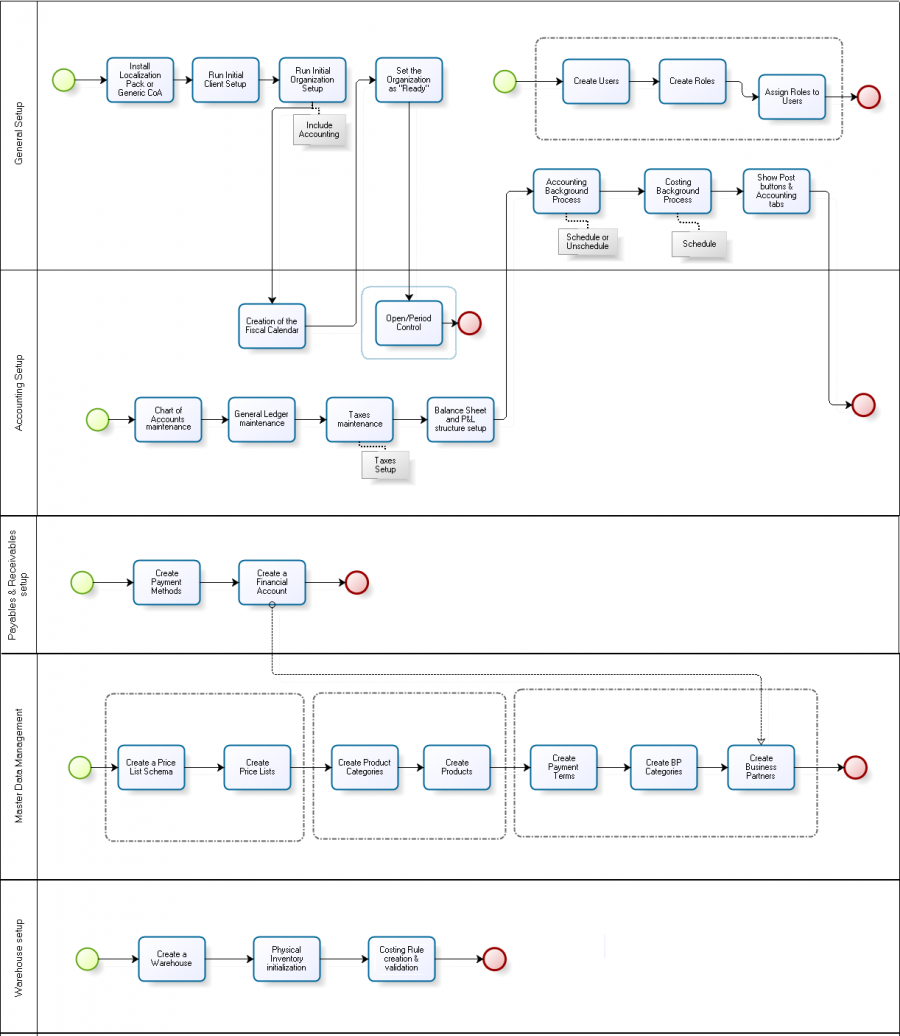

If you want to know more about the basic setup of the business configurations in Openbravo, please review this article: Business Setup.
By following this setup flow you should be able to have your own version of Openbravo ready to execute the basic Business Flows.
¶ Business Flows
The basic business flows explained in this section are related to below listed business areas:
- Accounting
- Procurement
- Sales
- Payables & Receivables
If you want to know more about the management of the basic business flows in Openbravo, please review this article: Business Flows.